
Cómo añadir una cámara IP a Protegus 2
- 01.03.2022
- Fabricante: Trikdis
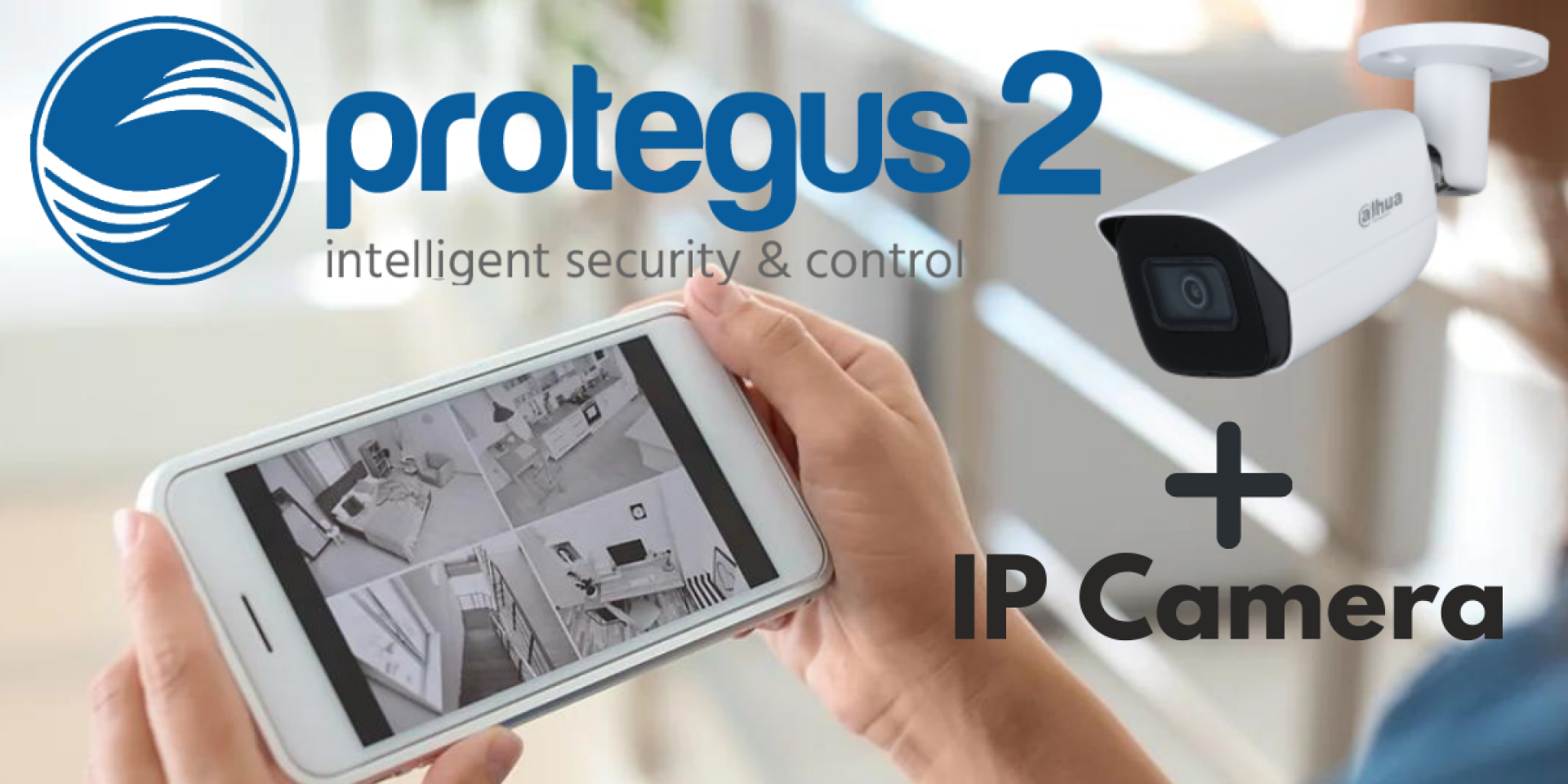
Si usas Protegus 2 y tienes una cámara IP con transmisión en vivo, puedes añadir un botón de acceso directo en la pantalla de inicio para abrir la transmisión en vivo.

Es necesario tener una cámara IP con una IP externa y un puerto abierto. De lo contrario, no funcionará.
- Inicia sesión en Protegus 2 si es necesario.
- Abre el menú lateral y selecciona Cámaras.
- Pulsa el botón más para añadir una cámara.
- Introduce el nombre que aparecerá en la pantalla de inicio del sistema (opcional).
- Rellena el resto de campos:
Dirección IP
Puerto
Nombre de usuario (cámara)
Contraseña (cámara)
Ruta de transmisión en vivo
El número máximo de cámaras que se pueden añadir es 8.
Todos los datos son accesibles a través del panel de administración de la cámara. En lugar de introducir los datos uno a uno, puedes pegar el enlace RTSP completo y los campos se rellenarán automáticamente. Para ello, copia el enlace completo y pégalo en cualquier campo.
El enlace RTSP debe seguir la siguiente estructura:
Para hacer pruebas puedes usar la cámara de la oficina de Trikdis:
rtsp://admin:admin@195.14.187.141:1554/live
Vídeo tutorial breve: Cómo añadir una cámara IP a Protegus 2
Etiquetas:
Artículos relacionados

Aplicación Protegus para Android / iPhone y web
- 27.01.2018
La aplicación gratuita Protegus para móvil y web – gestión remota de tu sistema de alarma, compatible con cualquier fabricante.
Leer más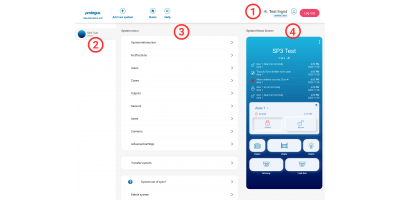
Interfaz de navegador de Protegus 2 renovada
- 30.11.2023
La interfaz de navegador renovada de Protegus 2 y el nuevo diseño explicados.
Leer másProductos relacionados
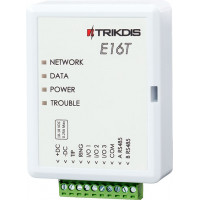
Trikdis E16T Ethernet comunicador universal - módulo IP
El comunicador Ethernet inteligente Trikdis E16T puede conectarse a cualquier central de alarma a tr..
€86,90 IVA excl.: €70,65
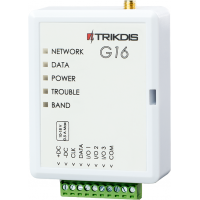
Trikdis G16 2G GSM comunicador inteligente
El comunicador GSM Trikdis G16 2G trabaja con centrales de alarma Paradox, DSC y de otros fabricante..
€128,90 IVA excl.: €104,80
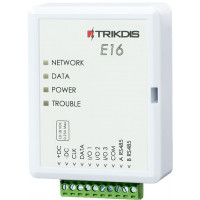
Trikdis E16 Ethernet comunicador - módulo IP
El comunicador Ethernet Trikdis E16 puede trabajar con centrales de alarma Paradox, DSC y de otros f..
€82,90 IVA excl.: €67,40
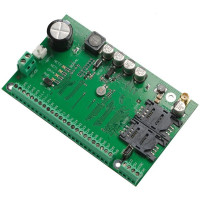
Trikdis SP231 GSM / IP central de alarma inteligente
La central de alarma inteligente SP231 ofrece el control remoto completo del sistema de alarma y los..
€-1,23 IVA excl.: €-1,00
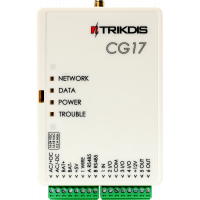
Trikdis CG17 2G GSM central de seguridad compacta
El CG17 es un sistema de seguridad inteligente autónomo, compacto y FLEXible. Puede utilizarse tanto..
€-1,23 IVA excl.: €-1,00
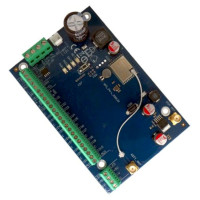
Trikdis FLEXi SP3 WiFi central de alarma inteligente
Trikdis FLEXi SP3 WiFi es una central de alarma inteligente flexible y versátil con comunicador WiFi..
€139,90 IVA excl.: €113,74
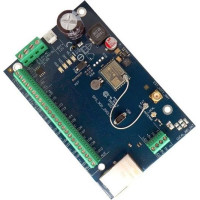
Trikdis FLEXi SP3 Ethernet central de alarma inteligente
Trikdis FLEXi SP3 Ethernet es una central de alarma inteligente flexible y versátil con comunicador ..
€139,90 IVA excl.: €113,74
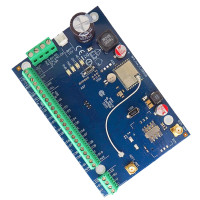
Trikdis FLEXi SP3 WiFi + 2G central de alarma inteligente
Trikdis FLEXi SP3 WiFi + 2G es una central de alarma inteligente flexible y versátil con comunicador..
€149,90 €183,90 IVA excl.: €121,87