Registro de instalador y configuración del logotipo de empresa en la app Protegus
- 06.03.2019
- Manufacturer: Trikdis
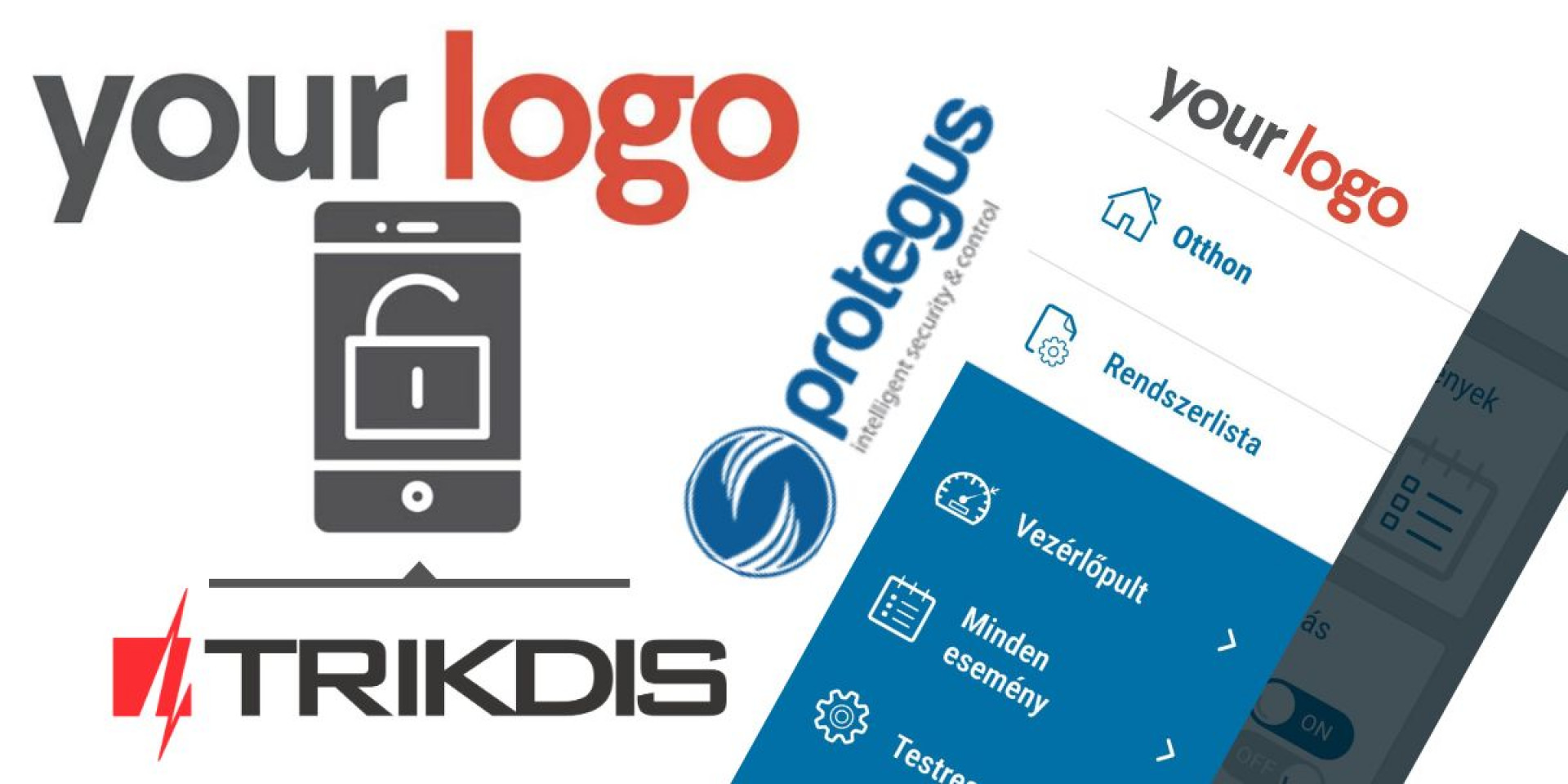
In this post we walk through the installer registration process in the Protegus system and how to set up your company logo. The whole process takes no more than 5–10 minutes.
What is the benefit of setting up your company logo?
By default, Protegus users see the Protegus logo in the top-left corner of the browser and app. However, if their system was set up by an installer, the installer's or their company's logo appears instead of the Protegus logo (if it has been configured).

Tip: your logo serves a marketing purpose — the customer sees it multiple times every day.
For example, a GV17 gate opener installed at a residential complex or garage can reach 1000+ potential customers, all of whom will see your company logo daily.
In this example, registration and logo setup are shown in a browser, but the process is similar in the mobile app.
Registration
1. In your browser, go to the Protegus website and select your language from the drop-down menu, then click the registration button.

2. Fill in your details and tick the box indicating that you are registering as an installer. Complete the additional fields: area of operation, company name and phone number, then click the registration button.

3. A confirmation email will be sent to the address you provided. Click the link in the email to verify your registration. The link will automatically open your Protegus account.

Company Logo Setup
1. If not already logged in, visit the Protegus login page and sign in with your username and password, then select the customisation menu item.

2. On the next screen, select profile settings, fill in any missing details, then click the image upload button and select the image file containing your desired logo. Recommended image size: 165×45 pixels (no larger). Supported formats: SVG or PNG.

3. The logo now appears in the top-left corner.

Tip: Adding contact information (e.g. a phone number) beneath your logo ensures users always know who to contact for help.
The good news is that once set up, the logo immediately appears on all previously created systems too. Users can also request technical support via the help menu in the app.
Tags:
Related Articles
Aplicación Protegus para Android / iPhone y web
- 27.01.2018
La aplicación gratuita Protegus para móvil y web – gestión remota de tu sistema de alarma, compatible con cualquier fabricante.
Read More
Prueba Protegus 2 en un sistema EN VIVO
- 20.02.2024
Prueba la aplicación Protegus 2 en un sistema Trikdis FLEXi SP3 real y en vivo con las credenciales de acceso proporcionadas.
Read MoreRelated Products
Trikdis E16T Ethernet comunicador universal - módulo IP
El comunicador Ethernet inteligente Trikdis E16T puede conectarse a cualquier central de alarma a tr..
€86,90 IVA excl.: €70,65
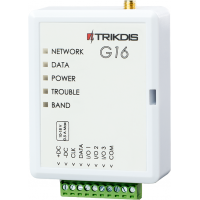
Trikdis G16 2G GSM comunicador inteligente
El comunicador GSM Trikdis G16 2G trabaja con centrales de alarma Paradox, DSC y de otros fabricante..
€128,90 IVA excl.: €104,80
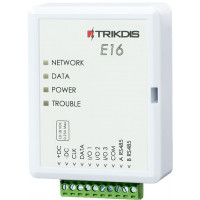
Trikdis E16 Ethernet comunicador - módulo IP
El comunicador Ethernet Trikdis E16 puede trabajar con centrales de alarma Paradox, DSC y de otros f..
€82,90 IVA excl.: €67,40
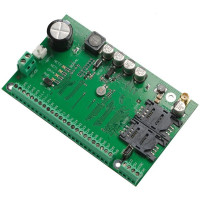
Trikdis SP231 GSM / IP central de alarma inteligente
La central de alarma inteligente SP231 ofrece el control remoto completo del sistema de alarma y los..
€-1,23 IVA excl.: €-1,00
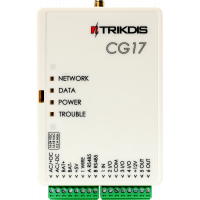
Trikdis CG17 2G GSM central de seguridad compacta
El CG17 es un sistema de seguridad inteligente autónomo, compacto y FLEXible. Puede utilizarse tanto..
€-1,23 IVA excl.: €-1,00